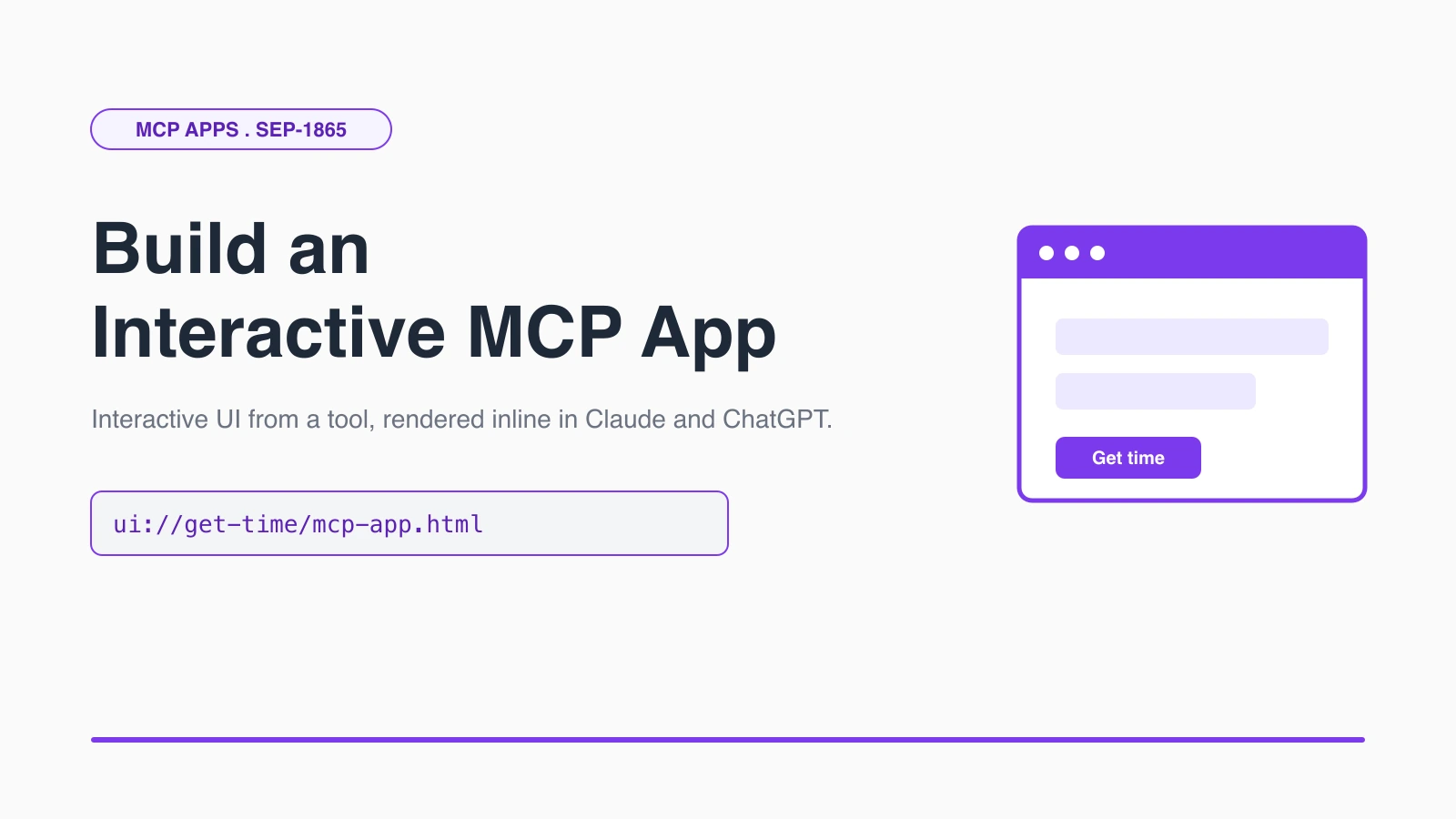

For its entire life, an MCP tool could only hand back text and structured JSON. That's fine for "get the weather," but it falls apart the moment you want a chart you can hover, a form you can fill, or a map you can pan. The model ends up describing a UI in words instead of showing you one.
MCP Apps fixes that. It's the first official extension to the Model Context Protocol, shipped as SEP-1865, and it lets a tool return a real interactive interface that the host renders inline in the conversation. A tool points at an HTML resource, the host drops it into a sandboxed iframe, and the UI talks back to your server over the same protocol everything else in MCP uses. Claude, ChatGPT, VS Code, and Goose already support it.
I built the quickstart app to see how little code it takes, and the answer is "surprisingly little." This post walks through the whole thing: what the extension adds, how the render flow works, how to register a UI tool on the server, how to build the View, and how to run it in a real client. If you've followed my other MCP posts like the stateless 2026-07-28 spec breakdown, this is the layer that finally puts a face on your tools.
What is the MCP Apps extension (SEP-1865)?
MCP Apps is a standard way for an MCP server to ship interactive UI alongside its tools, defined in the extension proposal SEP-1865. It builds on plain MCP rather than replacing it, so your existing tools keep working and you opt specific ones into a UI.
The core idea is small. A tool declares a ui:// resource that holds an HTML interface. When the model calls that tool, the host fetches the resource and renders it in a sandboxed iframe directly in the chat. The rendered UI then communicates with the host over JSON-RPC, the same base protocol MCP already uses, so every action the UI takes flows through the same consent and audit path as a direct tool call.
Because the UI template is declared ahead of time, hosts can prefetch it, cache it, and security-review it before anything runs. You install the SDK once:
npm install -S @modelcontextprotocol/ext-appsThe package splits into focused entry points: the root @modelcontextprotocol/ext-apps for building the View, /server for registering tools and resources, /react for React hooks, and /app-bridge for hosts that embed Views.
How does an MCP App show UI inside the chat?
The host runs a four-step flow: the tool declares a UI resource, the model calls the tool, the host fetches and renders the resource in a sandboxed iframe, and then UI and host talk both ways. Nothing renders until the tool is actually invoked.
Here's the sequence in plain terms:
- Tool definition. Your tool declares a
ui://resource that contains its HTML interface. - Tool call. The model calls the tool on your server like any other tool.
- Host renders. The host fetches the resource and displays it in a sandboxed iframe inside the conversation.
- Bidirectional communication. The host passes tool results into the UI, and the UI can call tools back through the host.
The link between a tool and its UI is one field. The tool carries _meta.ui.resourceUri pointing at the resource:
{
  "name": "get-time",
  "description": "Returns the current server time.",
  "inputSchema": {},
  "_meta": { "ui": { "resourceUri": "ui://get-time/mcp-app.html" } }
}How do you register a UI tool on your MCP server?
Register two things that share a resource URI: the tool, with registerAppTool, and the HTML resource, with registerAppResource. The @modelcontextprotocol/ext-apps/server package gives you both helpers plus the RESOURCE_MIME_TYPE constant for the UI content type.
This is the full server for a "get time" app, lifted from the official quickstart:
import {
  registerAppResource,
  registerAppTool,
  RESOURCE_MIME_TYPE,
} from '@modelcontextprotocol/ext-apps/server';
import { McpServer } from '@modelcontextprotocol/sdk/server/mcp.js';
import fs from 'node:fs/promises';
import path from 'node:path';

const DIST_DIR = path.join(import.meta.dirname, 'dist');
const resourceUri = 'ui://get-time/mcp-app.html';

export function createServer(): McpServer {
  const server = new McpServer({ name: 'Get Time Server', version: '1.0.0' });

  registerAppTool(
    server,
    'get-time',
    {
      title: 'Get Time',
      description: 'Returns the current server time.',
      inputSchema: {},
      _meta: { ui: { resourceUri } }, // links the tool to its UI
    },
    async () => ({ content: [{ type: 'text', text: new Date().toISOString() }] })
  );

  return server;
}The tool handler still returns normal content, so the app degrades gracefully: a host without MCP Apps support just shows the text. Now register the resource that serves the HTML:
registerAppResource(
  server,
  resourceUri,
  resourceUri,
  { mimeType: RESOURCE_MIME_TYPE },
  async () => {
    const html = await fs.readFile(path.join(DIST_DIR, 'mcp-app.html'), 'utf-8');
    return { contents: [{ uri: resourceUri, mimeType: RESOURCE_MIME_TYPE, text: html }] };
  }
);The resource just returns your bundled HTML as text with the MCP Apps MIME type. The host fetches it once, caches it, and reuses it every time the tool runs.
How do you build the interactive View?
Build the UI as a normal web page and connect it to the host with the App class from @modelcontextprotocol/ext-apps. The View is plain HTML plus a script, bundled to a single file, so you can use any framework or none.
Here's the View for the get-time app:
import { App } from '@modelcontextprotocol/ext-apps';

const serverTimeEl = document.getElementById('server-time')!;
const getTimeBtn = document.getElementById('get-time-btn')!;

const app = new App({ name: 'Get Time App', version: '1.0.0' });

// Set this BEFORE connect() so you don't miss the initial tool result.
app.ontoolresult = (result) => {
  const time = result.content?.find((c) => c.type === 'text')?.text;
  serverTimeEl.textContent = time ?? '[ERROR]';
};

getTimeBtn.addEventListener('click', async () => {
  // The UI asks the server for fresh data, on demand.
  const result = await app.callServerTool({ name: 'get-time', arguments: {} });
  serverTimeEl.textContent = result.content?.find((c) => c.type === 'text')?.text ?? '[ERROR]';
});

app.connect();Three methods carry most apps. app.ontoolresult receives the result of the tool call that opened the UI. app.callServerTool lets a button or input fetch fresh data without leaving the conversation. And app.updateModelContext({ content: [...] }), not shown here, pushes a note back into the model's context, so when a user picks an option in your UI the model knows about it on the next turn. Bundle the View with Vite (or your bundler of choice) into the mcp-app.html the server reads.
How do you run and test the MCP App?
Point an MCP client at your server over stdio, the same way you'd add any MCP server, then call the tool and the UI renders. Every Node example in the ext-apps repo publishes as @modelcontextprotocol/server-<name>, so a published app is one config block:
{
  "mcpServers": {
    "get-time": {
      "command": "npx",
      "args": ["-y", "@modelcontextprotocol/server-get-time", "--stdio"]
    }
  }
}For local development, clone the repo and use the bundled basic-host reference implementation, which renders Views in the browser without needing a full client:
git clone https://github.com/modelcontextprotocol/ext-apps.git
cd ext-apps && npm install && npm start
# open http://localhost:8080/If you want the agent to scaffold it for you, the repo ships Agent Skills (create-mcp-app, add-app-to-server) you can install into Claude Code and just ask it to build one. That's the fastest path from idea to a rendered View.
What security boundaries does an MCP App run inside?
Every MCP App runs in a sandboxed iframe, and every action it takes routes through the host's existing consent and audit path. The UI cannot reach your server directly. It speaks to the host over JSON-RPC layered on postMessage, and the host mediates every tool call.
That design matters for trust. When a button in your View calls app.callServerTool, the host treats it exactly like a model-initiated tool call, applying the same approvals and logging. Because the ui:// resource is declared up front, the host can fetch and review it before the tool ever runs, instead of being handed arbitrary markup mid-conversation. Sandboxing the iframe means the UI can't touch the host page, read other tabs, or escape into the client.
The honest caveat is reach: MCP Apps is an extension, so a host has to implement it. Support is real and growing (Claude, ChatGPT, VS Code, Goose, Postman), but a client that only speaks core MCP will fall back to your tool's text content. That's why I keep the tool returning useful text even when it has a UI. Build the View as an enhancement, not a hard dependency, and your tool works everywhere while looking great where it can.
For the full details, see the MCP Apps specification (2026-01-26) and the SEP-1865 discussion.
Keep Reading
- Why the MCP 2026-07-28 Spec Drops Sessions and Goes Stateless. The protocol direction this UI layer sits on top of.
- How to Build a Stateless MCP Server for the 2026-07-28 Spec. Build the server that your MCP App attaches its UI to.
- Claude Skills vs MCP vs Projects: Which One Should You Use?. Where MCP fits among Claude's extensibility options.