
The single fastest way to wake up to a ransom note is to expose your Postgres port directly to the public internet. The second fastest is to think you can secure it with a strong password and call it a day.
I have run point on database access for production systems at three different companies. Every single one of them had at least one engineer at some point ask if we could "just open 5432 to my IP" so they could pull a quick report from DBeaver. The answer is always no. The right answer is an SSH tunnel, and once you have done it twice, it takes about 15 seconds to set up.
This post is the practical guide I wish I had given that engineer the first time. We will cover the command, the GUI client setup for the four databases I touch most often, the autossh recipe that keeps the tunnel alive through laptop sleeps and network changes, and the small set of mistakes that bite people in production. If you want the deeper context on why exposing database ports is bad even with strong auth, I covered that in my zero-trust microservices post, and the connection pooling tradeoffs once you are inside the tunnel show up in my pgbouncer survival guide.
What is an SSH tunnel and why use it for database access?
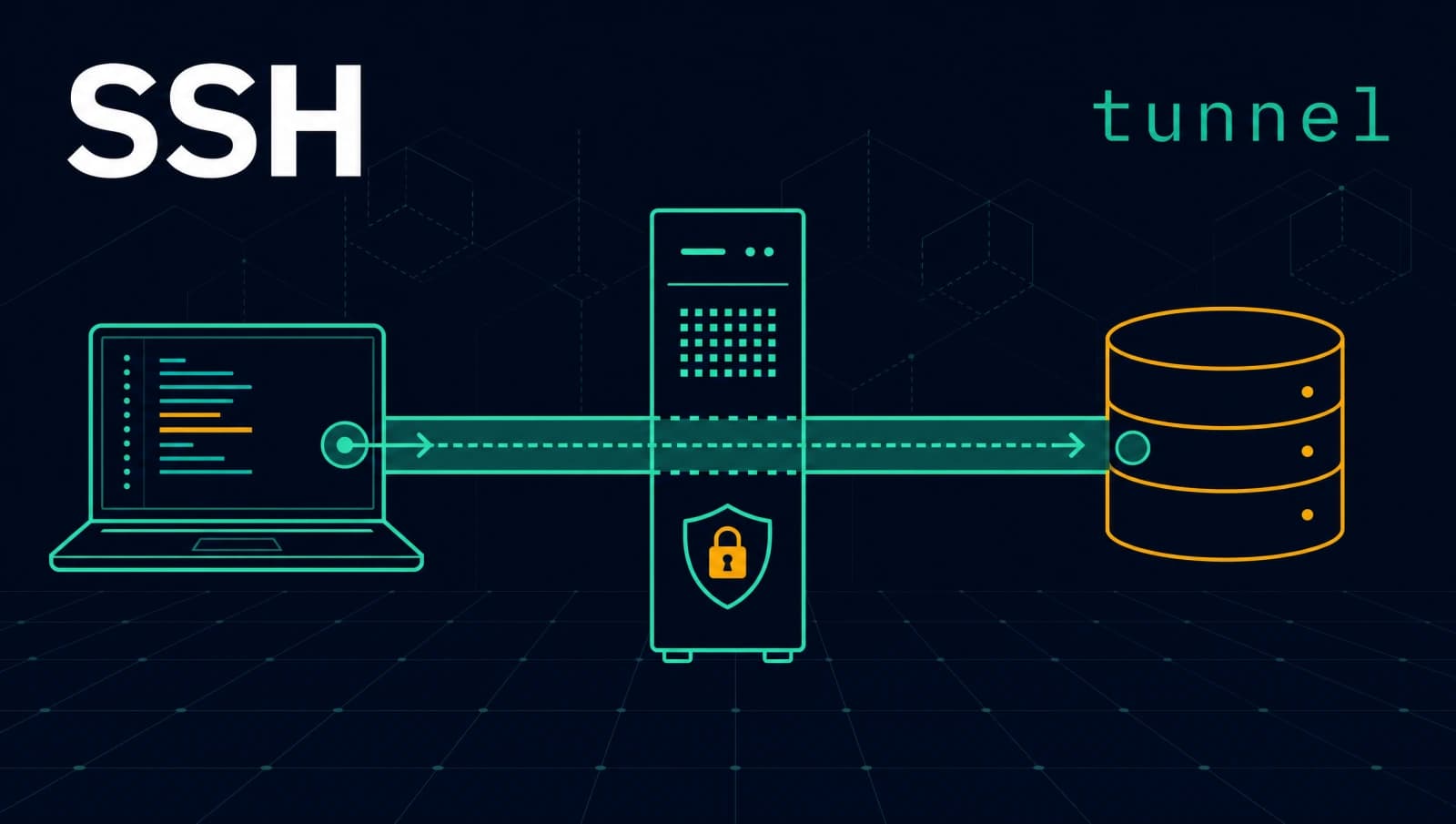
An SSH tunnel for database access forwards a local TCP port on your laptop through an authenticated SSH session to a remote host, which then opens a connection to the actual database. Your database client connects to localhost and never knows anything else exists. All traffic rides inside the encrypted SSH channel.
The shape of it looks like this.
This pattern wins on five things at once.
No exposed database port. The database listens only on its private network. The bastion is the only thing on the public internet, and it only speaks SSH.
No firewall holes per developer. Every engineer goes through the same bastion. You add or remove access by adding or removing SSH keys, not by editing security group rules.
Audit trail. Every connection logs through SSH and through the bastion's auth.log. You know who connected, from where, when.
Works with every client. psql, DBeaver, TablePlus, DataGrip, mysql, redis-cli, mongosh. They all just see localhost. No driver-level config needed.
Encrypted in transit by default. Even if your database speaks plaintext on the wire (looking at you, Redis), the tunnel carries it under SSH.
The one thing it does not give you is high availability. The tunnel is a long-lived TCP connection between exactly two hosts. If your bastion goes down, your tunnel goes with it. That is fine for ad-hoc developer access. It is not fine for application traffic. Application traffic belongs on a private network or a managed bastion service like AWS Session Manager.
How do you set up a local port forward to a remote Postgres?
The full command is one line.
ssh -L 5433:dbhost.internal:5432 ec2-user@bastion.example.comRead it left to right.
-L 5433:dbhost.internal:5432says forward local port5433on this laptop, through the SSH connection, todbhost.internal:5432resolved from the bastion's perspective.ec2-user@bastion.example.comis the SSH connection itself.
While that command is running, anything on your laptop that connects to localhost:5433 ends up talking to the Postgres on dbhost.internal:5432. Close the terminal or hit Ctrl+C and the tunnel dies.
I deliberately use 5433 on the local side instead of 5432. If you happen to have Postgres running locally for development, you do not want to clobber it. Pick a high port that does not collide.
To test the tunnel works without firing up a GUI, use psql from another terminal.
psql -h localhost -p 5433 -U app_user -d productionThat -h localhost is the key. Without it, psql tries to connect via Unix socket and skips the tunnel entirely. I have lost 20 minutes to this twice.
Running the tunnel in the background
If you do not want a terminal sitting open, add -f -N and the command returns immediately while the tunnel keeps running.
ssh -f -N -L 5433:dbhost.internal:5432 ec2-user@bastion.example.com-Nmeans do not execute a remote command (we only want the forward).-fmeans fork into the background after authentication.
To kill it later, find and stop the process.
pgrep -af "ssh.*5433:dbhost.internal"
kill <pid>A tidier setup with ~/.ssh/config
Typing that command every time gets old. Stash the whole thing in your SSH config.
# ~/.ssh/config
Host pg-prod
    HostName bastion.example.com
    User ec2-user
    IdentityFile ~/.ssh/keys/prod-bastion.pem
    LocalForward 5433 dbhost.internal:5432
    ServerAliveInterval 30
    ServerAliveCountMax 3
    ExitOnForwardFailure yes
Now the command is just ssh pg-prod, and you get a few useful behaviors for free.
ServerAliveInterval 30sends a keepalive every 30 seconds so the tunnel does not die when your home router decides to drop idle connections.ExitOnForwardFailure yesmakes ssh fail fast if the forward cannot bind, instead of leaving you with a dead tunnel and no error.
For the background form, ssh -f -N pg-prod still works. The config entry is purely additive.
How do you connect from your GUI client through the tunnel?
With the tunnel running, every GUI client connects to localhost on the forwarded port. The only field that matters is the host. Everything else (username, password, database name) is the same as you would use against the real database.
In DBeaver, create a new Postgres connection and fill in:
Host:     localhost
Port:     5433
Database: production
Username: app_user
Password: <your db password>
Hit Test Connection. If it works, you are good.
In TablePlus, same idea. Host is localhost, port is 5433.
In DataGrip, same. The driver does not know the tunnel exists, which is exactly the point.
DBeaver and DataGrip both have a built-in SSH tunnel option in their connection dialog. That works too. The advantage of using ssh on the command line instead is that you can share one tunnel across psql, DBeaver, a script, and a notebook at the same time. The advantage of the GUI option is that it dies cleanly when you close the client.
I default to the command line approach because I almost always have multiple things hitting the same database. Pick what fits your workflow.
How do you do the same for MySQL, Redis, and MongoDB?
The flag is identical. Only the port changes.
# MySQL
ssh -L 3307:dbhost.internal:3306 user@bastion

# Redis
ssh -L 6380:cache.internal:6379 user@bastion

# MongoDB
ssh -L 27018:mongohost.internal:27017 user@bastionThen connect each client to localhost on the forwarded port.
mysql -h 127.0.0.1 -P 3307 -u app_user -p
redis-cli -h 127.0.0.1 -p 6380
mongosh "mongodb://app_user:secret@127.0.0.1:27018/production"A few client-specific notes that catch people.
MySQL needs 127.0.0.1, not localhost. The mysql client tries to connect via Unix socket when you say localhost, just like psql does. Use the IP literal and you skip that.
Redis tunnels work great for debugging, badly for sustained throughput. Every command round-trips through the SSH session. Latency goes from 0.2 ms to 8-30 ms depending on your link. Fine for redis-cli MONITOR or one-off lookups. Wrong tool for ETL.
Mongo replica sets need extra care. A standalone mongod tunnels fine. A replica set will hand you back the internal hostnames of the other replicas during connection negotiation, and your client will then try to connect to those names directly. Either tunnel each replica on its own port and add them to your connection string, or set directConnection=true in the URI to disable replica discovery.
How do you keep the tunnel alive with autossh and systemd?
ssh -f -N works until your laptop goes to sleep, your wifi switches, or the bastion restarts. Then the tunnel dies silently and your next connection just hangs. The fix is autossh, which is a tiny wrapper that monitors the SSH process and restarts it when it drops.
Install it.
# macOS
brew install autossh

# Ubuntu / Debian
sudo apt install autossh

# Fedora / Rocky
sudo dnf install autosshRun it the same way you ran ssh, with one extra port for autossh's own health check.
AUTOSSH_GATETIME=0 \
autossh -M 0 -f -N \
  -o "ServerAliveInterval 30" \
  -o "ServerAliveCountMax 3" \
  -o "ExitOnForwardFailure yes" \
  -L 5433:dbhost.internal:5432 \
ec2-user@bastion.example.comA few details that matter.
AUTOSSH_GATETIME=0makes autossh restart immediately even if the first connection failed. Without it, autossh waits 30 seconds before retrying, which is annoying when you mis-typed the host.-M 0disables autossh's old monitoring port mechanism. We use theServerAlive*SSH options instead, which work better through NATs and modern firewalls.
That command stays up through sleep, wake, and network changes. But it does not survive a reboot. For that, wrap it in a systemd user service.
The systemd user service
Create ~/.config/systemd/user/pg-tunnel.service.
[Unit]
Description=Autossh tunnel to production Postgres
After=network-online.target
Wants=network-online.target

[Service]
Type=simple
Environment=AUTOSSH_GATETIME=0
ExecStart=/usr/bin/autossh -M 0 -N \
  -o "ServerAliveInterval 30" \
  -o "ServerAliveCountMax 3" \
  -o "ExitOnForwardFailure yes" \
  -o "ConnectTimeout 10" \
  -i /home/rabi/.ssh/keys/prod-bastion.pem \
  -L 5433:dbhost.internal:5432 \
  ec2-user@bastion.example.com
Restart=always
RestartSec=10

[Install]
WantedBy=default.targetNotice the ExecStart does not use -f here. Systemd wants the process in the foreground so it can supervise it. The Restart=always line takes over from the -f background behavior.
Enable and start.
systemctl --user daemon-reload
systemctl --user enable --now pg-tunnel.service
systemctl --user status pg-tunnel.serviceThat last command should show active (running). If you want the service to start at boot (not just at login), enable user lingering once.
sudo loginctl enable-linger $USERLogs are in journalctl.
journalctl --user -u pg-tunnel.service -fOn macOS, the same job goes into a launchd plist at ~/Library/LaunchAgents/com.rabi.pg-tunnel.plist. The shape is similar enough that I will skip the full XML, but the key entries are KeepAlive set to true and a ProgramArguments array that mirrors the autossh command above.
What are the common SSH tunnel mistakes to avoid?
I have made every one of these. So has everyone I have onboarded.
Binding the forward to 0.0.0.0 instead of 127.0.0.1. The default -L 5433:dbhost:5432 binds to localhost only. If you write -L *:5433:dbhost:5432, you have just opened your laptop's port 5433 to anyone on the same wifi network as you. They can now talk to your production Postgres. Do not do this. The local bind defaults to localhost for a reason.
Hardcoding production credentials in ~/.ssh/config. SSH config has no concept of secrets management. If you check your config into a dotfiles repo, that key path goes with it. Keep production keys outside the config-tracked area and reference them by absolute path from a directory that is gitignored.
Forgetting that ServerAliveInterval is client-side only. This tells your laptop to send keepalives. The bastion can still close the connection on its own idle timeout. If your bastion is AWS Systems Manager based or sits behind a corporate load balancer with a short idle, you also need to set keepalives at the server level (ClientAliveInterval in sshd_config). Otherwise your tunnel drops every five minutes and you do not know why.
Trusting the tunnel to give you encryption end-to-end. SSH encrypts the laptop-to-bastion segment. The bastion-to-database segment is in cleartext on your private network. For most production setups, that is fine because the private network is trusted. For sensitive workloads with stricter compliance requirements (PCI, HIPAA), insist on TLS on the database side too, even inside the VPC.
Tunneling through your jump host as root. The bastion is a public-facing box. The account that holds your tunnel should not also be the one with sudo rights. Use a dedicated low-privilege user for tunneling. Restrict it to command="false",no-shell in authorized_keys if you want to be paranoid, with a PermitOpen directive that limits which host:port combos this key can forward to.
The hardened authorized_keys line looks like this.
command="echo 'no shell',no-pty,no-agent-forwarding,no-X11-forwarding,permitopen="dbhost.internal:5432" ssh-ed25519 AAAA... rabi@laptop
That key can open exactly one forward, to exactly one host:port, and cannot execute a shell. If the key leaks, the attacker gets a tunnel to one database, not a shell on your bastion.
Letting the tunnel persist across job changes. This one is process, not technical. When an engineer leaves the team, their SSH keys come out of every bastion's authorized_keys. The keys are in your secrets manager and config-managed. Right? Right.
Using the same bastion for staging and production. I have seen this break twice. A misconfigured LocalForward ends up pointing your TablePlus at production while you think you are on staging. Use separate bastions, separate config entries with distinct host names like pg-prod and pg-stage, and color-code the connections in your client so you cannot confuse them visually.
What does the whole setup look like in 30 seconds?
For the reader who skipped to the end, here is the compressed version.
# One-off
ssh -f -N -L 5433:dbhost.internal:5432 user@bastion
psql -h localhost -p 5433 -U app_user -d production

# Persistent, survives sleep and network changes
brew install autossh
AUTOSSH_GATETIME=0 autossh -M 0 -f -N \
  -o "ServerAliveInterval 30" \
  -L 5433:dbhost.internal:5432 user@bastion

# Persistent, survives reboot (Linux)
# Drop the autossh command into ~/.config/systemd/user/pg-tunnel.service
# and run: systemctl --user enable --now pg-tunnel.serviceThat is genuinely all you need for 95% of the database access situations a developer hits.
The whole reason this pattern works is that SSH is older than most of the protocols we layer on top of it, and the port-forwarding feature has been battle-tested for three decades. Use it. Stop opening database ports to the internet. Your future self will thank you the next time a Shodan-driven exploit campaign sweeps the internet looking for misconfigured Postgres instances, which is approximately every Tuesday.
For more on the protocol, see the OpenSSH manual page for ssh(1), the autossh project page, and RFC 4254 for the SSH connection protocol spec that defines port forwarding.
Keep Reading
- Postgres Connection Pool: A pgbouncer Survival Guide: once you can reach the database, the next question is how many connections you can hold open without melting it.
- Zero-Trust Microservices with Spring Security: the bigger frame for why exposing internal ports is the wrong default, even inside a private network.